
Smaller images.
Ready for the web.
Turn your image folder into website-ready assets.
Convert, resize and optimize — right on your computer.
Free to use · No account · Works offline
 WebP ConverterYOUR IMAGES. YOUR COMPUTER.
*Static images only.
MADE FOR YOUR WEB WORKFLOW
Less file weight.
More control.
From a single product photo to a whole project folder. Keep the process simple, then fine-tune what matters.
A whole folder, in one go.
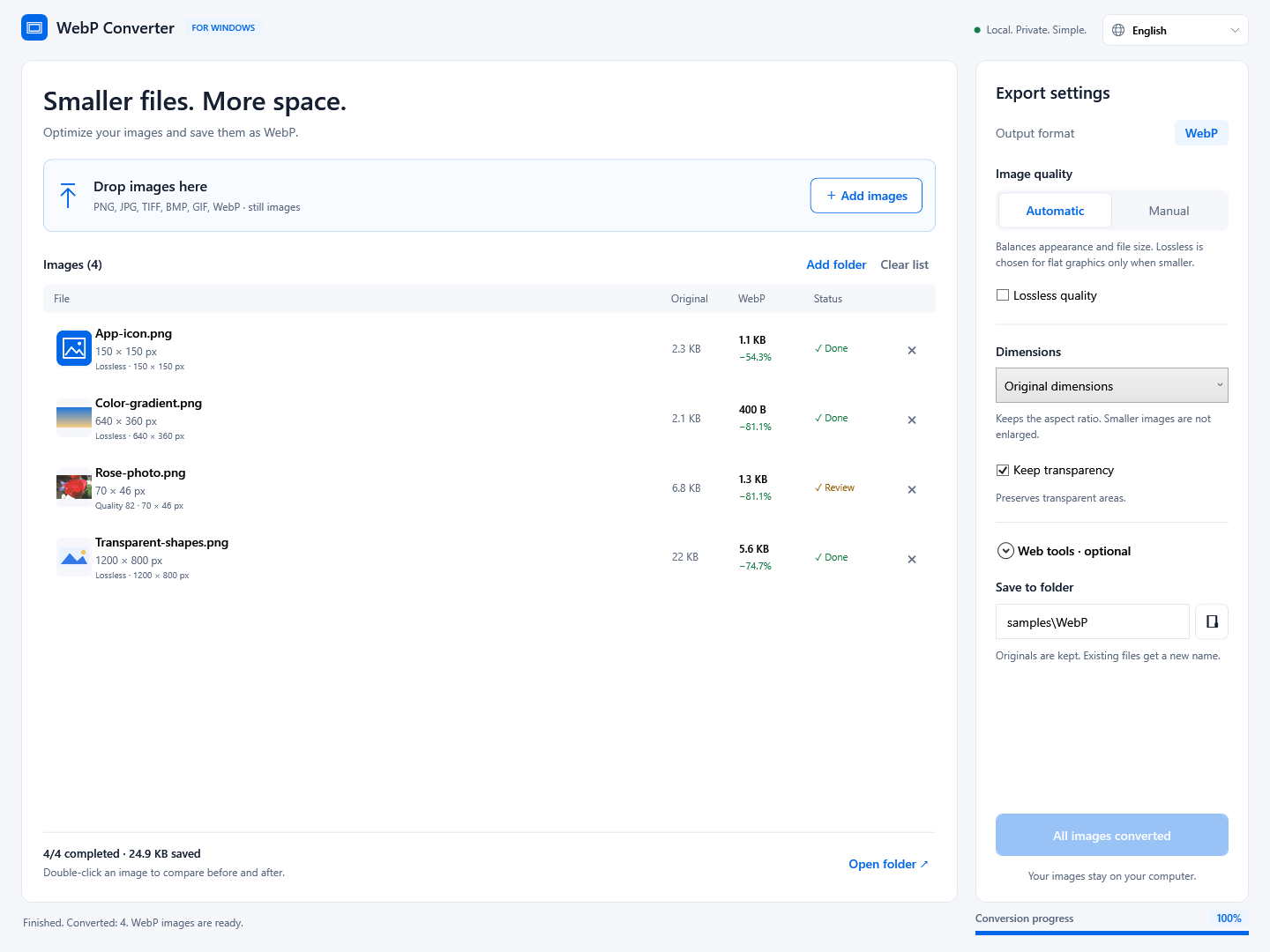
Drop in your images or add a folder. Convert a batch to WebP and see the resulting file sizes and progress in one place.
Your dimensions. Your quality.
Choose automatic, manual or lossless encoding. Enter a custom width and height, preserve the aspect ratio and keep transparency.
Your work stays with you.
Conversion runs on your computer. No image uploads, app telemetry or account. Original files remain unchanged.
EXTRA CONTROL, ONLY WHEN YOU NEED IT
A little more
web-ready.
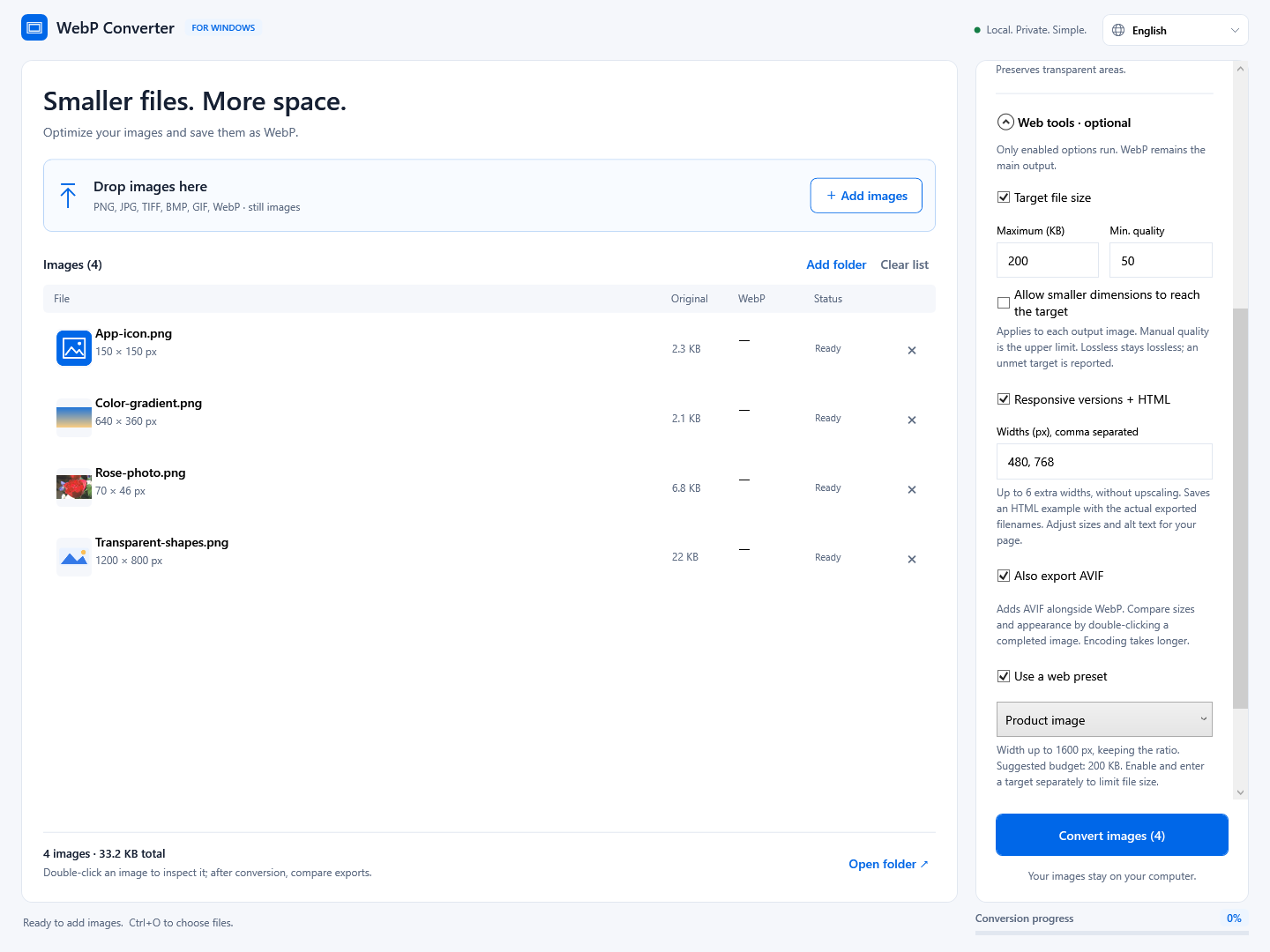
Optional tools are off by default. Switch on exactly what your project needs.
- A file-size targetSet a KB budget. See whether the export meets it; allow smaller dimensions only if you choose.
- Responsive image setsExport multiple widths with an HTML srcset example you can adapt to your layout.
- AVIF alongside WebPAdd another format and compare the actual output before choosing what to use.
- Useful web presetsStart with dimensions for hero images, products, cards or thumbnails.
FROM SOURCE TO EXPORT
Three steps. Then back to designing.
Add your images
Drag files into the app, use Add images or select a folder of supported images.
Choose your settings
Start with automatic quality, choose dimensions and enable any optional web tools.
Convert and review
Select an output folder and convert. Double-click a completed image to compare the result.
A DESKTOP TOOL. A PRIVATE WORKFLOW.
No upload queue.
No cloud required.
Work with client images locally. The app processes files on your device and saves exports to the folder you choose. Network and synced folders follow your system settings.
Hrvatski
Deutsch
English on first launch.
Switch inside the app.
YOUR NEXT EXPORT STARTS HERE
Make room for better websites.
WebP Converter 1.3.0 · Free · Windows 11 · Intel / AMD x64
Windows installer
Install the app for everyday use.
Download installerEXE · 50.6 MiB
- Download and open the installer.
- Follow the setup instructions.
- Launch WebP Converter from the Start menu.
Portable edition
Keep the app in a folder of your choice.
Download portable ZIPZIP · 73.8 MiB
- Download and extract the whole ZIP.
- Keep all extracted files together.
- Run WebP pretvarac.exe.
No separate .NET installation is needed. These packages are unsigned, so Windows may show a publisher warning. Verify the download source before running the app.
Is WebP Converter free?
Yes. Version 1.3.0 is free to download and use, with no account required.
Which image formats can I convert?
PNG, JPG/JPEG, BMP, TIFF, static GIF and WebP. Animated images and multipage TIFF are not supported. HEIC/HEIF, RAW, SVG, PDF and AVIF input are not supported in this release. AVIF is available as an optional output format.
Will my images always get smaller?
No. Output size depends on the image, dimensions, quality and format. A well-compressed original can be smaller than its conversion. Review the result, try smaller dimensions or enable a file-size target. Targets are not guaranteed; the app tells you when one is not reached.
Why is a bright image still large? Is it HDR?
Brightness alone does not indicate HDR. Large dimensions, noise, fine detail and lossless settings can all increase file size. Inspect the source analysis and try resizing or a lower quality setting. Version 1.3.0 recognizes PNG cICP PQ/HLG HDR and converts it to 8-bit SDR sRGB; other HDR formats and gain maps are not interpreted.
Are originals or private images uploaded?
The app does not upload images and has no telemetry. Originals are kept; existing output names receive a suffix instead of being overwritten. If you select a cloud-synced or network folder, that folder follows your Windows and sync-service settings.
What are the system requirements and limits?
Windows 11 x64 on Intel or AMD. Up to 1,000 images per queue, 256 MB per source file and 64 megapixels. Available memory can impose additional limits. This release is not a macOS or Linux application.
How do updates and uninstalling work?
Updates are downloaded manually. Close the app before running a newer installer. Extract portable updates into a new folder. Uninstall the installed edition through Windows Settings → Apps; remove the portable edition by deleting its extracted folder after closing it.